Laptop batteries are amazing. They give us the freedom to work, play, and stay connected without hunting for an outlet every few minutes. So, it can be pretty frustrating to suddenly see a message like “No Battery Is Detected” pop up on your screen. This error can feel like a huge roadblock right when you need your laptop to be at its best. But before you start panicking or rushing off for a replacement battery, there are several practical steps you can try to resolve this issue.
In this guide, you will learn how this error appears, its underlying causes, and the different ways you can fix it. The steps here work for Windows laptops from brands like Dell, ASUS, HP, Lenovo, Acer, and others. Before assuming your battery is dead, try the solutions below. Many users fix this error without replacing any parts.
Why Does the “No Battery Is Detected” Error Appear?
When your laptop says “No Battery Is Detected,” it essentially means the system isn’t recognizing the battery as being connected, even if it’s physically inside. This often happens due to communication glitches between the battery and your laptop’s hardware or software. It’s like trying to call someone whose phone is on airplane mode. You’re there, but you’re not getting the signals.
Common Causes Behind Battery Not Detected Error
Several things can trigger a detection error. Some are minor, while others require a deeper check. Common causes include:
- Loose or Dirty Battery Connection – Over time, dust, dirt, or slight movements can disrupt the electrical contacts between your battery and laptop’s internal connectors.
- Faulty or Outdated Battery Drivers – Your laptop uses software drivers to communicate with the battery. If these get corrupted or outdated, the battery can fail to register.
- BIOS or Firmware Issues – The BIOS acts like the brain’s operating system for hardware. Problems here can confuse the system about whether a battery is present.
- Failing or worn-out battery cells – As batteries age, their internal controller may stop reporting accurate information to the system.
- Battery Wear or Damage – Batteries have a lifespan. If yours is old or swollen, your laptop might refuse to detect or properly use it.
- Hardware Malfunction – In rare cases, motherboard issues or the battery controller may malfunction, causing detection errors.
How Does the “No Battery Is Detected” Error Usually Appear?
A battery detection problem is often easy to spot. It usually shows up in several ways, such as:
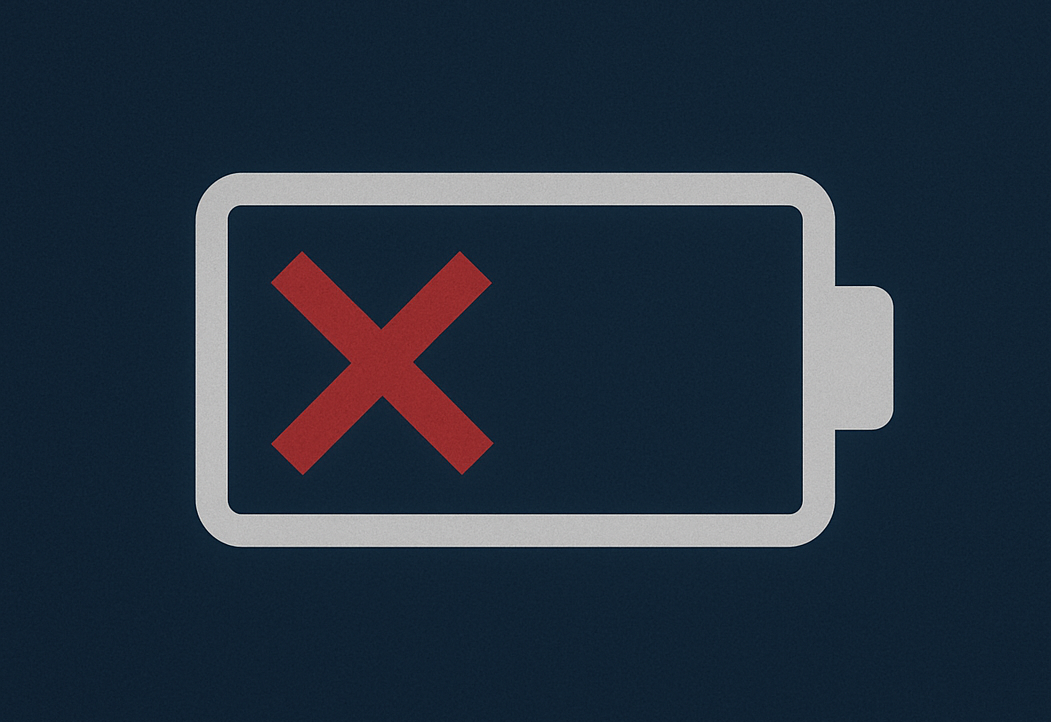
- A red X on the battery icon in the taskbar – Windows replaces your normal battery indicator with an alert icon. Hovering over it shows messages like “No Battery Is Detected” or “No Battery Present.”
- Battery percentage disappears completely – Instead of showing remaining charge, the battery section in Settings may look empty or unavailable.
- Windows reports “Plugged in” but no battery – Your laptop may run on AC power normally but refuses to recognize that a battery exists at all.
- Power settings become limited – Options like Battery Saver or battery health tools may be greyed out because Windows cannot detect hardware to manage.
These symptoms help confirm that the issue is related to battery detection rather than charging problems or rapid battery drain.
How to Fix the “No Battery Is Detected” Error?
The journey back to a fully functioning battery is often straightforward. Here’s a step-by-step guide that can help:
Step 1 – Power Cycle Your Laptop
Shut down your device, unplug all peripherals, and remove the battery if it’s removable. Hold the power button down for 30 seconds to drain residual power. Then reconnect the battery and power up. This clears low-level electrical faults that can cause battery detection errors.
Step 2 – Clean the Battery Contacts
If your battery is removable, slide it out and gently wipe the gold connectors on both the battery and laptop with a dry, soft cloth or an eraser to remove grime. A loose or dusty connection is one of the simplest causes of detection problems.
Step 3 – Check for Physical Issues
Inspect the battery for signs of swelling, cracks, or unusual wear. A damaged battery should be replaced to avoid damage to the laptop.
Step 4 – Reinstall Battery Drivers
Corrupted drivers are a major cause of the “No Battery Is Detected” issue. To reinstall them:
- Open Device Manager.
- Expand the “Batteries” section.
- Right click “Microsoft ACPI Compliant Control Method Battery.”
- Select “Uninstall device.”
- Restart the laptop to reinstall the drivers automatically.
This forces Windows to refresh battery communication files.
Step 5 – Update the BIOS or UEFI Firmware
Battery information passes through your laptop’s BIOS. If the BIOS has outdated code, it may fail to detect newer battery states.
- Visit your laptop manufacturer’s support page.
- Download the latest BIOS update.
- Follow the provided instructions carefully.
Make sure your laptop stays plugged in during the update.
Step 6 – Check the Battery Health Status in BIOS
Some laptops display battery information directly in BIOS. Restart your laptop and enter BIOS using the correct key such as F2, Del, or F10.
Look for a section related to power or battery. If BIOS itself cannot detect the battery, the issue is likely hardware related.
Step 7 – Try a Power Reset without the Battery
For models with removable batteries:
- Remove the battery.
- Plug the laptop directly into the charger.
- Turn it on.
- Shut it down again.
- Reinsert the battery.
- Boot normally.
This resets the charge controller and often solves detection glitches.
Step 8 – Inspect the Battery for Swelling or Damage
Swollen batteries are common in older laptops. Check for:
- Bulging around the battery pack
- Gaps in the case when closed
- Burning smell or heat near the battery area
If you notice any of these signs, stop using the laptop and replace the battery immediately.
Step 9 – Replace the Battery if It Has Failed Completely
If your battery is several years old, the internal controller might have stopped functioning. In this case, the laptop may never detect it again. Replacing the battery is the most effective fix.
Make sure to buy an original or high quality replacement to avoid detection issues.
Step 10 – Check the Charging Board or Motherboard
If even a new battery is not detected, the charging circuit might be failing. Only a technician can confirm this by testing the:
- Battery connector
- Charging IC
- Power rail
This problem is less common but possible, especially on laptops with a history of overheating.
Preventing Future Battery Issues
A little regular maintenance goes a long way. Keep your laptop’s power-related drivers and BIOS updated. Try to avoid overcharging or leaving your laptop plugged in for extended periods. When possible, remove removable batteries if you’re planning to leave your laptop unused for a long while.
Wrapping Up
Seeing the “No Battery Is Detected” error might trigger alarm, but following these steps can often bring your battery back to life without costly repairs. With a bit of attention to both hardware and software, you ensure your laptop keeps running smoothly, unplugged and ready for whatever comes next.
If your laptop still refuses to recognize the battery after trying all these solutions, consider visiting a professional repair shop to test the internal power components. A working battery is essential for performance, reliability, and convenience, so resolving the “No Battery Is Detected” issue should always be a priority.